Using R: accessing PANTHER classifications

Importing, subsetting, merging and exporting various text files with annotation (in the wide sense, i.e. anything that might help when interpreting your experiment) is not computation and it’s not biology either, but it’s housekeeping that needs to be done. Everyone has a weapon of choice for general-purpose scripting and mine is R. Yes, this is ”quite trivial if you only think it out”, but it still takes me some time. This script is a work in progress and could certainly be much cleaner and friendlier, but I’ll post it for the benefit of any other user that might google for this kind of thing.

Panther is a protein database with phylogenetic trees of proteins annotated with Gene Ontology terms and organised into pathways. (See the paper in the 2013 database issue of NAR.)  Right now, I’m after pathway classification of chicken proteins. The pathways are also available in some xml formats for systems biologists, but I’m going to use the classification table. It contains all UniProtKB proteins, so it should cover most known genes products.

Note, if you just want to check up on a few genes or a few pathways the Panther web interface seems pretty nice. If you’re after nice pathway diagrams, also check out the website and the SBML format. But for accessing classifications en masse, a treatment in R may be useful.

For this post, I’ve broken down the script into parts. If you want a function for the whole thing, see github.

First, download the classification data for your favourite organism from the Panther ftp.

  panther <- read.delim(filename, sep="\t", head=F,
                        stringsAsFactors=F)

  colnames(panther)[1] <- "gene.id"
  colnames(panther)[3:5] <- c("panther.id", "panther.family",
                            "panther.subfamily")
  colnames(panther)[6:8] <- c("go.mf", "go.bp", "go.cc")
  colnames(panther)[9:10] <- c("panther.ontology", "panther.pathway")

This is a tab separated text file. Since some fields at the end of lines may be left empty, we use read.delim instead of read.table. I add som column names that I think agrees reasonably well with the readme. The first is a  gene id string that contains mapping to Ensembl or Entrez ids, as well as the uniprot accession. It looks something like this:

CHICK|Gene=ENSGALG00000013995|UniProtKB=F1P447

CHICK|ENTREZ=378784|UniProtKB=Q75XU5

Of course, we want the ids as separate columns: stringr does regular expressions in a vectorised manner. str_match gets grouped matches into arrays. (Yes, it can be done with a single regexp, but I don’t take pleasure in that kind of thing.)

  panther$ensembl.id <- str_match(panther$gene, "Gene=(.*)\\|")[,2]
  panther$uniprot.id <- str_match(panther$gene, "UniProtKB=(.*)$")[,2]
  panther$entrez.id <- str_match(panther$gene, "ENTREZ=(.*)\\|")[,2]

The gene ontology fields are terms from each ontology, stringed together and separated by semicolons. This is not the best format for querying, so I’ll make a list of GO ids from each ontology:

  parse.go <- function(go.column) {
    go.list <- str_match_all(go.column, "GO:([0-9]*)")
    names(go.list) <- panther$gene.id.string
    go.list <- llply(go.list, function(x) {if (!is.null(dim(x))) x[,1]})
    return(go.list)
  }
  go.mf <- parse.go(panther$go.mf)
  go.bp <- parse.go(panther$go.bp)
  go.cc <- parse.go(panther$go.cc)

Finally, the pathway column. It says this in the readme:

***Example Pathway:
Inflammation mediated by chemokine and cytokine signaling pathway#Inflammation mediated by chemokine and cytokine signaling pathway#P00031>Integrin#Integrin#P00853;Integrin signalling pathway#Integrin signalling pathway#P00034>Integrin alpha#Integrin alpha#P00941

The format of the pathway information is: pathway_long_name#pathway_short_name#pathway_accession>
component_long_name#component_short_name#component_accession

Explanation of pathway accessions:
Gxxxxx Gene or RNA
Pxxxxx Protein
Sxxxxx small molecules
Uxxxxx others, such as ”unknown”, etc.

For now, I’d like to keep just the pathway id, which is the first id of each pathway entry. Again, there are often multiple entries for the same gene.

  pathway.list <- str_match_all(panther$panther.pathway,
                                "#([G,P,S,U][0-9]*)>")
  names(pathway.list) <- panther$gene.id.string
  pathway.list <- llply(pathway.list,
                        function(x) {if (!is.null(dim(x))) x[,2]})

We might want to have these additional descriptions (names of GO terms, name of pathway) later, but for now, I’ll be satisfied with the unique ids. Let’s package everything in a list, and slap a class attribute on it for good measure.

  panther.classification <- list(data=panther,
                                 go.mf=go.mf,
                                 go.bp=go.bp,
                                 go.cc=go.cc,
                                 panther.pathway=pathway.list)
  class(panther.classification) <- "panther.classification"

Now we can get the pathway ids associated with our favourite gene. Take for example GNB3 which has Uniprot id E1C9D6.

get.pathways <- function(panther, acc) {
  
  ix.uni <- which(panther$data$uniprot.id == acc)
  ix.ens <- which(panther$data$ensembl.id == acc)
  ix.ent <- which(panther$data$entrez.id == acc)
  
  if (length(ix.uni) > 0) {
    ix <- ix.uni
  } else if (length(ix.ens > 0)) {
    ix <- ix.ens
  } else if (length(ix.ent > 0)){
    ix <- ix.ent
  } 
  panther$panther.pathway[[ix]]
  
}
get.pathways(panther.classification, "E1C9D6")

I'll get back to this to maybe do something more useful with it.

A slightly different introduction to R, part III

I think you’ve noticed by now that a normal interactive R session is quite messy. If you don’t believe me, try playing around for a while and then give the history() command, which will show you the commands you’ve typed. If you’re anything like me, a lot of them are malformed attempts that generated some kind of error message.

Hence, even for quite simple tasks, keeping some kind of notebook of the R commands you’ve used is simply a must. The easiest way to keep track of what you do is probably to copy parts of your history to a text document. However, I strongly recommend that you put in a little extra effort. This part will introduce R scripts and Sweave, which is nowadays integrated into base R. Using Sweave is a little more work than a script file, but often a lot better, since it gathers the output you generate (including plots) and formats it into a pretty neat report. Even if Sweave isn’t your thing, I suggest that you at least try out the scripting approach. In the end, it is pretty much guaranteed to save time and decrease (though not completely abolish) frustration.

7. Scripting

An R script is nothing more than a text file of commands. That’s it. Simply write the commands in your favourite plain text editor, save the file — scripts usually have the file extension .R — and then give the following R command:

source("some_script.R")

R will silently perform the commands in the specified order. If anything goes wrong, an error message will appear. To write a script from within Rstudio, select File > New > R Script. An editor area will open from which you can directly run single lines or the whole script.

rstudio_script

This is an example of an R script to run some descriptive stats on the comb gnome data set:

## An example script for the R introduction blog.
## Will print some summary statistics from the comb gnome data.
data <- read.csv("comb_gnome_data.csv")

print(mean(subset(data, group=="pink")$mass0))
print(sd(subset(data, group=="pink")$mass0))
print(mean(data$mass0))
print(sd(data$mass0))

One difference from entering the commands interactively is that text output will be suppressed, unless you set the echo parameter to true in the source() function:

source("some_script.R", echo=T)

Hence the print() function, explicitly telling R to print the output of that particular function.

Also, lines that being with ”##” are comments. If you are using a good geeky text editor (such as the editor in Rstudio) it will understand R syntax and highlight comments, as well as reserved words such as ”library” above, in some stand out colour.

R doesn’t care about whitespaces, so use them liberally to break up your code into blocks of related commands.

Let’s do an  example with a plot:

data <- read.csv("comb_gnome_data.csv")
library(reshape2)
melted <- melt(data, id.vars=c("id", "group", "treatment"))

library(ggplot2)
p <- qplot(x=variable, y=value, color=treatment, geom="jitter", data=melted)

Here we can make use of the fact that qplot returns the plot as an R object. We can give each plot a name and then recall them to look at them.

In the above script I repeated myself a little, which is less than ideal. For a large project, you would probably want some script to process the data and save them in a nice object, and then separate scripts for data analysis, making graphics etc.

You can of course use source() in a script, like so:

source("data_preparation.R")
qplot(x=variable, y=value, color=treatment, geom="jitter", data=melted)

I suggest, as much as possible, making sure each script can run form start to finish without user input, and beginning each script file with a little comment that explains what it does, what data files  are needed and what output the script produces.

If you have to step in and manually change the order of some columns (or a similar mundane task) before making that last plot, that’s not such a big deal the first couple of times. But if you need to revisit the analysis two months later to change some detail, you’ve probably forgotten all about that. Do your future self a big favour and script every part of the process!

8. Sweaving

Sweave is a so-called literate programming tool for R. That sounds very fancy, but when analysing data with R, it’s simply an easy way to organise code and output. You write the R code in a special type of file, and when it is run Sweave will gather all the output, including graphics, and organise them into a LaTeX document. Latex (I’m not going to stick to that silly capitalisation, sorry) is a free-as-in-freedom typesetting software, essentially a word processor where you write code instead of working in a graphical interface. It’s commonly used by technical folks for journal articles, reports, documentation and what not.

Latex is great, but sometimes not so intuitive — overall, though, I think both Microsoft Word and Open Office have caused me more frustration than Latex. It can do a lot of stuff, for instance, it’s particularly good with mathematical formulae. However, unless you want to make reports for publishing you’ll probably not have to learn that much of Latex. And as usual, most of the time you can just type any error message into a search engine to get help. (Two common problems are using reserved special characters, such as ”_” in the text, and making code blocks for graphics output, but forgetting to output any graphics. See below.)

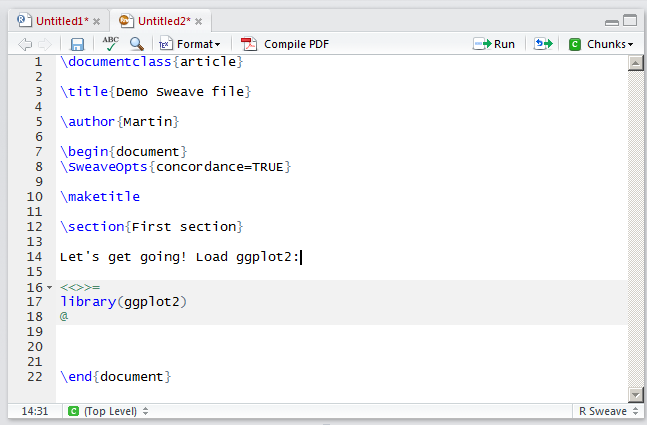
In Rstudio, choose File > New > R Sweave. A few Latex codes are inserted from the beginning. This is about the bare minimum to make a Latex document. Move the cursor down below the ”\begin{document}” line, and start writing some text. When you want to enter code preface it with ”<<>>=” on its own line, and end the code with a ”@”:

\documentclass{article}
\begin{document}
\SweaveOpts{concordance=TRUE}

This is a Latex document. Text goes here.

<<>>=
data <- read.csv("comb_gnome_data.csv")
library(reshape2)
melted <- melt(data, id.vars=c("id", "group", "treatment"))
@

\end{document}

When you run the Sweave file, R will execute the code blocks just like a regular script file. The output will be captured and put into a Latex document together with the text you wrote around the code blocks.

rstudio_sweave

Sweave files usually end in .Rnw. Running a Sweave file is almost the same as running a script:

Sweave("some_sweave_file.Rnw")

After Sweaving, R helpfully suggests that you run Latex on a .tex file that it has created. If you work on a terminal in Mac OS X, some GNU/linux distribution or similar, this translates to ”latex some_report.tex” or ”pdflatex some_report.tex”. In Rstudio, you can press the Compile PDF button. To do this, you will need to have Latex installed.

When things go wrong, Sweave will terminate and display the error message as usual. It also tells you in which code block the error occured. The blocks aren’t numbered in the .Rnw file, but with the Stangle() function, you will write out an R file where the chunks are numbered. You can open it and search for the part where the error occured. Of course, you can also run it as a script file.

As mentioned above, a code block can output graphics and insert them into the report. To specify a code block with graphics output, use ”<<fig=T>>=”. In the case of ggplot2 graphics, which we have used in this introduction, you will have to use the print() function on them for them to be displayed.

<<fig=T>>=
print(qplot(x=variable, y=value, color=treatment, geom="jitter", data=melted))
@

In the text between the code blocks, you can use any Latex formatting. Rstudio can help you with some, if you press the Format button.

Finally, I put the above blocks together to this Sweave file, and got this output pdf. Neat, isn’t it?

That was two ways to organise R code. I still think it’s fine, even advisable, to spend a lot of time in interactive R trying stuff out. But at the end of the session, a script or Sweave file that runs without manual tinkering should be the goal. I usually go for a Sweave file for any piece of analysis that will output plots, tables, model calculations etc, but make scripts that I can source() for more general things that I will reuse.

Okay, enough with my preaching. Next time, we’ll try some actual statistics.

Using R: writing a table with odd lines (again)

Let’s look at my gff track headers again. Why not do it with plyr instead?

d_ply splits the data frame by the feature column and applies a nameless function that writes subsets to the file (and returns nothing, hence the ”_” in the name). This isn’t shorter or necessarily better, but it appeals to me.

library(plyr)
connection <- file("separate_tracks_2.gff", "w")
d_ply(gff, "feature", function(x) {
  writeLines(paste("track name=", x$feature[1], sep=""), connection)
  write.table(x, sep="\t", row.names=F, col.names=F,
              quote=F, file=connection)
})
close(connection)

Using R: writing a table with odd lines (GFF track headers)

The other day, I wanted to add track lines to a GFF file, so that I could view different features as separate custom tracks in a genome browser. The need to shuffle genome coordinates between different file formats seems to occur all the time when you deal with some kind of bioinformatic data. It’s usually just text files; one just has to keep track of whether the positions should start on 0 or 1 and whether the end should include the last base or not . . .

> head(gff)

  seqname         source        feature     start       end score strand
1       5 protein_coding           mRNA 169010747 169031776     .      +
2       5 protein_coding        protein 169015421 169021641     .      +
3       5 protein_coding five_prime_UTR 169010747 169010893     .      +
4       5 protein_coding five_prime_UTR 169015398 169015420     .      +
5       5 protein_coding            CDS 169015421 169015579     .      +
6       5 protein_coding            CDS 169018052 169018228     .      +
  frame                                                     group
1     . ID=ENST00000504258;Name=CCDC99-005;Parent=ENSG00000040275
2     . ID=ENSP00000421249;Name=CCDC99-005;Parent=ENST00000504258
3     .                                    Parent=ENST00000504258
4     .                                    Parent=ENST00000504258
5     0                    Name=CDS:CCDC99;Parent=ENST00000504258
6     0                    Name=CDS:CCDC99;Parent=ENST00000504258

The above example consists of a few lines from the Ensembl human database, not the actual tracks I was interested in. Anyway, this is what I did: instead of using write.table() directly, explicitly open a file for writing, first write some track line, then write the relevant subset, and repeat.

tracks <- unique(gff$feature)
connection <- file("separate_tracks.gff", "w")
for (k in 1:length(tracks)) {
  writeLines(paste("track name=", tracks[k], sep=""), connection)
  write.table(subset(gff, feature==tracks[k]),
              sep="\t", row.names=F, col.names=F,
              quote=F, file=connection)
}
close(connection)

A slightly different introduction to R, part II

In part I, we looked at importing data into R and simple ways to manipulate data frames. Once we’ve gotten our data safely into R, the first thing we want to do is probably to make some plots.

Below, we’ll make some simple plots of the made-up comb gnome data. If you want to play along, load the same file we used for part I.

data <- read.csv("comb_gnome_data.csv")

This table contains masses of 99 comb gnomes at four time points. Gnomes come in two varieties, and are divided into two groups with exposed to different treatment. Of course, I already know what kinds of effects and features are present in the data, since I generated them. However, please bear with me while we explore a little. The point is to show some useful things R can do for you.

4. Making simple plots with ggplot2

R is often used for graphics, with R plots gracing poster sessions all over the world with their presence. Base R can make pretty nice plots — mainly with the plot() function — but there are also several additional graphics packages. For this introduction, I will use ggplot2 by Hadley Wickham, because it’s my favourite and if you start learning one of them it might as well be ggplot2.

ggplot2 has a rather special syntax that allows a lot of fancy things, but for now we will stick to using the quick plot function, qplot(), which works pretty similar to base R graphics.

Before we can use the package, though, we need to install it. To install a package from CRAN (the comprehensive R archive network), simply give an install.packages() command:

install.packages("ggplot2")

A window opens (by the way, it is beyond me why R feels the need to open a window for this task, since it almost never does, but sure why not) that asks you to select a mirror. Choose the one closest to you. The package downloads, installs, and also installs some other packages that ggplot2 needs.

CRAN, by the way, contains binaries and source for lots and lots of packages. Bioinformatics packages, though, are usually installed through Bioconductor, which has its own system. Some packages live on R Forge, a community platform. You can also install packages manually. Remember though, R packages are software, so don’t just install unknown stuff.

We need to load a package to use it. The next time you use ggplot2, you only need to do this step:

library(ggplot2)

Let’s get on with it. This is how to quickly make a scatterplot, a boxplot and a histogram. The graphs will open in a new window, or in your plot if you’re using Rstudio.

qplot(x=mass0, y=mass50, data=data)

plot1

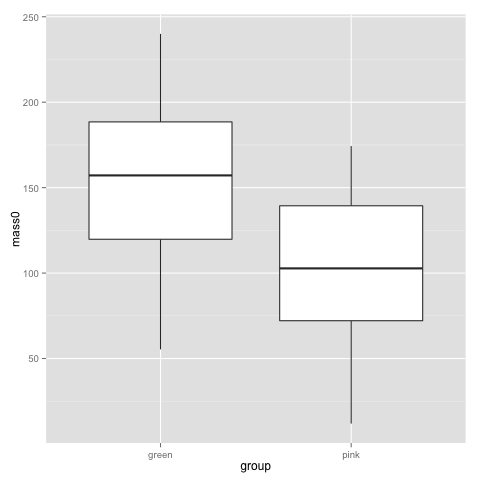
qplot(x=group, y=mass0, geom="boxplot", data=data)
plot2

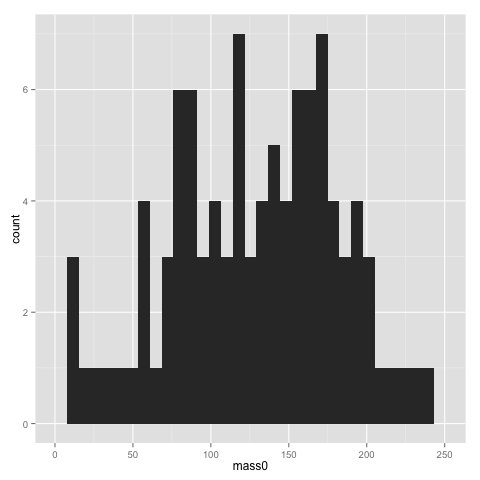
qplot(x=mass0, data=data)

plot3

The x and y parameters of course refer to the x and y axis of the graph. geom is the parameter for selecting a particular type of graph. See the ggplot2 documentation for all available geoms. If you don’t specify a geom, ggplot2 will guess it based on what types of variables you supply.

The width of bins of a histogram can be problematic — the histogram may look rather different with different bins. Putting a binwidth parameter in qplot() allows you to change the bins.

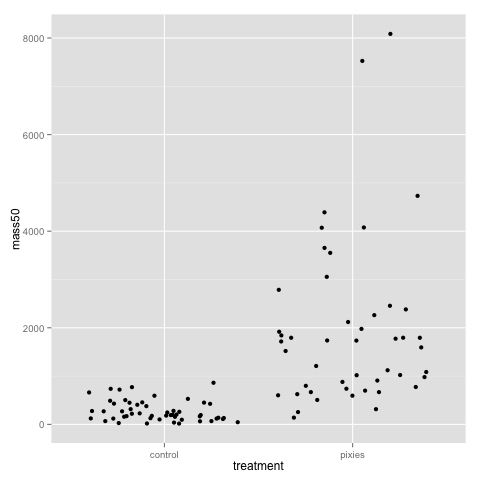
The above plots suggest that pink and green comb gnomes differ in weight at time 0. A nice alternative to the boxplot is the dotplot (jittered to reduce overplotting). We make one with mass at time 50 by treatment:

qplot(x=treatment, y=mass50, geom="jitter", data=data)

plot4

An alternative to the histogram is a density plot:

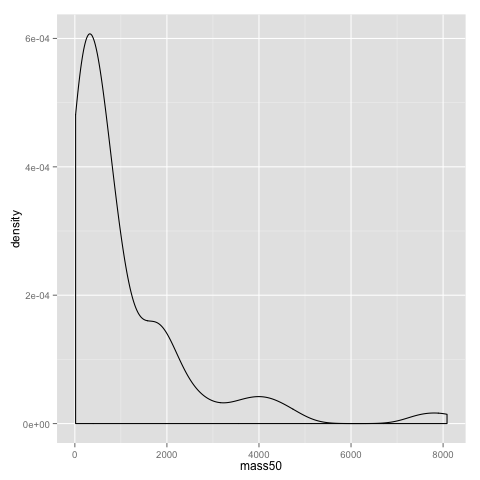
qplot(x=mass50, geom="density", data=data)
plot5

Both the dotplot and the density plot show that the distribution of comb gnome masses at time 50 is skewed to the left, with many individuals with low mass, and a few very heavy ones.

Some of the more useful parameters to qplot() are xlab, ylab, xlim, ylim, and main. They allow you to set the title of the graph (main), the x and y axis labels (xlab and ylab), and adjust the scales (xlim and ylim). In this example changing the scales make little sense, but it is sometimes useful. (These are the same parameters as you would use in the base R plot() fuction, by the way.)

qplot(x=mass0, y=mass50, data=data, xlim=c(0,350), ylim=c(0,10000), xlab="mass at birth", ylab="mass at age 50", main="Comb gnome mass")

Some style options are very easy to change, and can help visualising structure of data. Here, we use the colour of the dots for treatment, and the shape for group.

qplot(x=mass0, y=mass50, colour=treatment, shape=group, data=data)

plot7

This plot, as well as the above jittered dotplot makes it perfectly clear that there is a difference in growth between comb gnomes that are exposed to pixietails and those who are not, but also huge variation within the group of exposed comb gnomes. We can also discern the difference in initial mass between green and pink comb gnomes.

5. Reshaping data, and some more plots

Now, let’s take the opportunity to introduce another wonderful package by Hadley Wickham: reshape2. It is best described with an example. reshape2 should have been installed with ggplot2. Load it like so:

library(reshape2)

The reshape2 package centers around the concept of ‘melting’ and ‘casting’ a data frame (or array). First, recall the form our data frame is in:

head(data)
  group treatment  mass0    mass10   mass25    mass50    id
1 green control    180.9564 217.1795 285.5527  450.6075  1
2 green pixies     140.1157 279.0560 784.3293  4390.4606 2
3 green control    119.0070 125.7097 136.4782  156.5143  3
4 green pixies     220.7838 366.5834 784.2983  2786.0915 4
5 green pixies     210.7911 430.9156 1259.5120 7525.7961 5
6 green control    200.7478 249.3120 345.0496  593.0786  6

Then, look at this type of table:

head(melt(data))
  group treatment variable value
1 green control   mass0    180.9564
2 green pixies    mass0    140.1157
3 green control   mass0    119.0070
4 green pixies    mass0    220.7838
5 green pixies    mass0    210.7911
6 green control   mass0    200.7478

The second format is the what reshape2 and ggplot2 calls ‘melted’ — each row is one value with a few indicator variables (id variables) that tell you which groups a data point belongs to. The ‘variable’ column contains the name of the columns of data — in this case masses at time 0, 10, 25, and 50, as well as id, which reshape2 guessed is one of the data columns; we’ll have to fix that below — and ‘value’ their values.

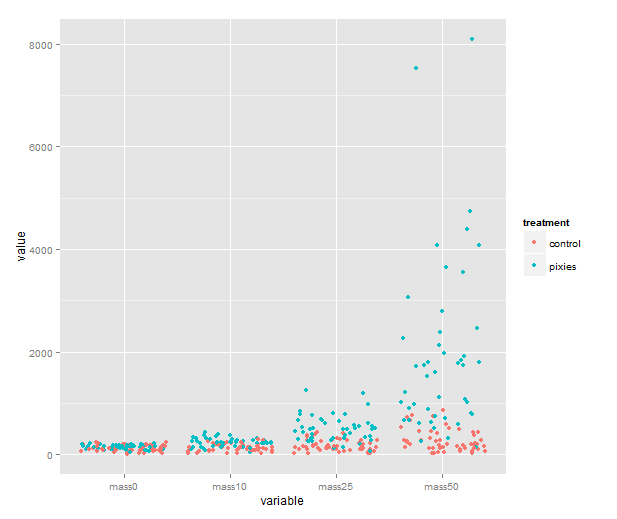
Imagine making a multiple regression — this is a bit like the format you would want then. The value would be the response, and the id variables would be predictors. This is very useful not only for regression modelling, but also for plots. Look at this one for instance, that comes quite naturally once the data have been melted.

melted <- melt(data, id.vars=c("id", "group", "treatment"))
qplot(x=variable, y=value, color=treatment, geom="jitter", data=melted)
melted1

We could of course show them as boxplots instead, with geom=”boxplot”. If time was really a categorical variable with four levels, that would be great. I don’t know about you, however, but I would like to see individual growth trajectories of the comb gnomes. To accomplish this, we make a new column in the melted data frame.

melted$time <- 0

It’s about time to introduce the which() function. which() gives you the indices of the elements of a vector that satisfy some logical expression. We get the indices of elements that belong to mass10, mass25 and mass50 and use them to assign the proper number to those elements of the time column.

(Note the ”==” here, used to denote equality in logical expressions. The logical equals sign must be double, or bad things will happen — i.e. R will understand the expression as an assignment rather than a comparision.)

melted$time[which(melted$variable=="mass10")] <- 10

melted$time[which(melted$variable=="mass25")] <- 25

melted$time[which(melted$variable=="mass50")] <- 50

Since the comb gnome ids are numbers, R imported them as a numeric column.  We will need the id column shortly, so let’s make sure it is treated as categorical:

melted$id <- factor(melted$id)

We’re almost there. Looking at previous plots, comb gnome growth looks a lot like an exponential function. So let’s try taking the natural logarithm. If you don’t want to change your data frame, functions can be applied in the qplot() call:

> qplot(x=time, y=log(value), geom=”line”, color=id, data=melted)

melted2

This is a busy plot, and the legend doesn’t help. You can remove it with the following line. (This is a taste of the finer details of ggplot2. Actually, the output of qplot() is an object that can be manipulated with the addition operator.)

qplot(x=time, y=log(value), geom="line", color=id, data=melted) + theme(legend.position="none")

Anyway, there seems to be method to the madness — the growth of each comb gnome appears roughly linear on a log scale.

We’re done with that for now. I hope this gave a taste of the usefulness of melting data. Even better, once you have melted data, you can ‘cast’ it into some other tabular format. This is particularly useful for data that are provided in a ‘melted’ format, when you really want a cross-table.

We do this with dcast(). The ‘d’ stands for data frame. (There is also an acast() for arrays.) dcast() needs a melted data frame and a formula, consisting of the variables you want in rows, a tilde ”~”, and the variables you want in columns. Try these:

head(dcast(melted, variable ~ id))

head(dcast(melted, id ~ variable))

head(dcast(melted, id + group + treatment ~ variable))

In cases where the variables on one side do not uniquely identify data points, you can use dcast() for data summaries, by choosing some appropriate aggregation function:

dcast(melted, group + treatment ~ variable, fun.aggregate=mean)

dcast(melted, group + treatment ~ variable, fun.aggregate=sum)

Overall, reshape2 can save you a lot of time and headache, even though it’s not always completely intuitive. It’s not something you will use every day, but keep it in mind when the problem arises.

6. Saving data

Before we move any further, let’s talk about saving data:

1. Saving graphics. Depending on what platform you work on, there will be different interface features to save the plot you’re looking at. In the windows R interface, you can right click to get a menu that allows you to copy the graph. On mac OS X, you can save the graph with an option in the menu bar. In RStudio, you can press the export button above the plot area. On windows and unix, you can write

savePlot(file="plot.png", type="png")

with several image types. See help file for details. On any platform, you can redirect the graphics from the screen to a file, run your plot commands and then send control back to the screen:

pdf("some_filename.pdf")

qplot(x=mass10, y=mass25, data=data)

dev.off()

2. Saving tables. If you have modified a data frame and want to save it to a file (for instance, you might like to use R to melt or cast a table for some other software that needs a particular format), you can use write.table() or write.csv().

write.csv(melted, file="melted_data.csv", row.names=F, quote=F)

3. Saving R objects. This is useful when you want to switch between scripts and sessions. Just write

save(data, melted, file="comb.gnome.data.Rdata")

to save the content of variables ”data” and ”melted”. You can list several variables or just one. If you want to continue with the next part, save the melted data to a file like that. When you reopen R, you can load them with:

load("comb.gnome.data.Rdata")

4. Saving the entire workspace. You can also save the entire contents of your workspace: all the variables you currently have assigned and the history of commands that you’ve given. But frankly, I don’t recommend it. Saving your workspace means that you can pick up exactly where you left off, but the workspace quickly turns into a mess of forgotten variables, and it’s very difficult to retrace the train of thought in an unannotated command history.

I much prefer saving selected variables on files, and making each analysis a self-contained script. In the next part, I’ll try to show you how. Now that we’ve covered a few useful thing one can do with R, it is time to have a look at how to organise R code into simple scripts, and introduce Sweave.

A slightly different introduction to R, part I

Note in Swedish: Jag hoppas läsaren ursäktar att jag skriver på engelska då och då.

This will be a brief introduction to using the statistics software R for biologists who want to do some of their data analysis in R. There are plenty of introductions to R (see here and here, for example; these are just a couple of intros that make some good points), but I’d like to show a few things that I wish somebody would’ve told me when I started learning R. As always with R, if you need any help, just type a question into a search engine. Often someone else asked first.

Caveat lector: I don’t pretend to be an expert, just another user. Since R speaks to you through a text based interface, some code will be involved — but if you really want to learn computer programming, R is probably not the best place to start, and I’m certainly not the best teacher. However, while using R, you will naturally want to write scripts, and practice a humble form of literary programming.

1. Why R?

What? R is an environment for computation and graphics. R is free software, meaning that you can distribute, copy, and modify it. It is development is a big collaborative effort. The name referes to the fact that R started as a free implementation of S.

Why? R is very common among scientists (at least biologists and statisticians). It is a full-fledged statistiscs software, and it is easily extensible, meaning that there are tons of useful (as well as less useful) packages for solving different problems. This introduction will start with base R, but will liberally use a bunch of great package.

R is usually not the most efficient way to do things in terms of computation time. If you have huge datasets (i.e. things that don’t fit in the RAM of your computer) you might have to turn to something else. R is, however, supremely flexible, and often very convenient. It takes commands from a command prompt or a script file, and outputs text, files, and graphics when told to.

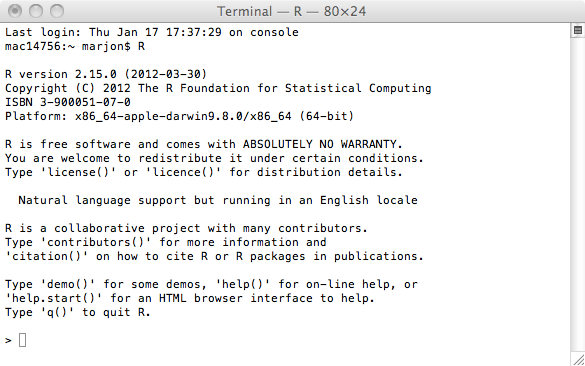
R comes with automated installers for lots of platforms, and installation is pretty easy. If you want a nice graphical interface, I suggest Rstudio. R comes with its own graphical user interface, but I find it annoying. I usually work with R in a terminal window, like this: At the shell of a unix terminal, just write ”R”. A legal disclaimer and a friendly ”>” greets you. You are now interacting with R.R_terminal

If you use one of the graphical interfaces, you will see the same things, but also a few other windows for editing script files, showing graphs etc.

2. Getting data into R

Say you have your data in a spreadsheet file. How do you get it into R? The easiest way is probably to export you spreadsheet tables to comma separated values (csv). (Just choose Save as… and select csv format in your favourite spreadsheet software). For this example, I use some made up data stored in data.csv. The read.csv() function reads csv files (duh). read.table() will read any tabulated data.

If you want to play along with the instructions, you can download comb_gnome_data.csv. If you work with the default R interface or R on the command line, you will have to put the file in your R working directory. In the R graphical interface, you can set and get the working directory under Misc (Mac) or File (Windows) in the menu bar.

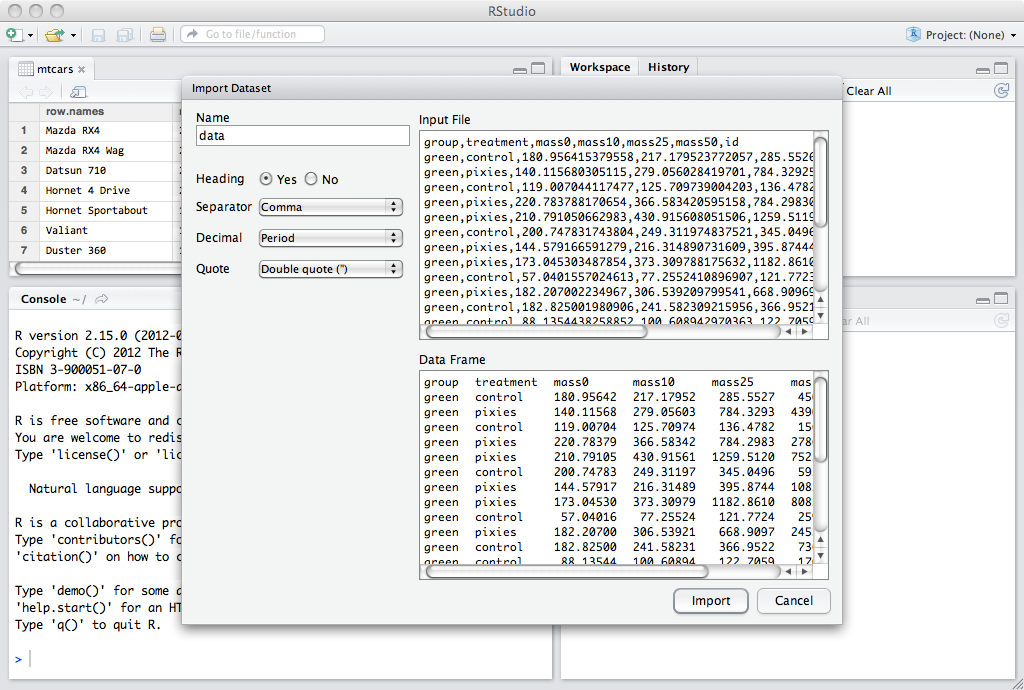
If you work with Rstudio, you can press the Import dataset button to open an import guide, and then skip over most of this section. Rstudio is nice.

rstudio_import

You run a function in R by writing its name followed by parentheses. Any parameters you pass to the function will be given in the parenthesis in a parameter=”value” format, like so.

data <- read.csv(file="comb_gnome_data.csv", header=T)

The arguments can either be given with their proper name, or in the default order. The arguments and output of any function are described in the help file — to read it, enter  a question mark and the name of the function:

?read.csv

Above, we’re telling R to run read.csv() with the file ”comb_gnome_data.csv”, and the option header set to true. The arrow ”<-" means assignment, telling R to save the output of read.csv() to the variable called "data". You can recall it by simply giving the name of the variable, and R will print the whole table.

data

If your table is huge, this might not be helpful. Use head() and tail() to see the beginning and end of the table. dim() tells you how many rows and colums you have. This table format is called a data.frame, and is the basis of many operations in R.

head(data)

  group treatment mass0  mass10   mass25    mass50    id
1 green control 180.9564 217.1795 285.5527  450.6075  1
2 green pixies  140.1157 279.0560 784.3293  4390.4606 2
3 green control 119.0070 125.7097 136.4782  156.5143  3
4 green pixies  220.7838 366.5834 784.2983  2786.0915 4
5 green pixies  210.7911 430.9156 1259.5120 7525.7961 5
6 green control 200.7478 249.3120 345.0496  593.0786  6

These data are of course fictive — imagine they are measurements of mass at different time points (0, 10, 25 and 50 imaginary time units) of pink and green comb gnomes in the presence or absence of pixietails.

dim(data)
[1] 99 7

In this case, we have 99 rows and 7 columns.

Before reading an unkown file, it is a good idea to inspect it and make sure things are in order. Also, if you get strange error messages from read.csv() or read.table(), it’s usually something easy, like using the wrong separator. Open it in your favourite text editor and check what the separator is (could be comma, tab, a space, or a semicolon, perhaps). R will also assume that all rows have an equal number of entries, for example.

A special note about empty cells: R has a special code — NA — for missing values. Sometimes you have another symbol for missing values, such as ”-”. You can tell R this with the na.strings parameter.

other.data <- read.table(file="other_data.txt", sep="\t", header=F, dec=",", na.strings=c("-", "NA", "omgwtf"))

Here, the data file uses tab as separator, has no header, uses comma as decimal separator (hello Swedish users), and ”-”, ”NA” or ”omgwtf” for missing values.

A final thing on entering data: R uses different formats for numbers, strings of characters, and factors (think: categories). R will recognise your numbers as numbers, but if you enter text, R will default to factors. Sometimes, say when you use a sample id that contains letters, you’d prefer text columns to be ”character”. To do that, give the parameter stringsAsFactors=F. If you don’t get this right when entering the file, don’t worry, you can change type later.

(For more details, see a comprehensive input manual here.)

3. Getting, setting and subsetting

So you have entered your data into a data frame and had a look at it with dim(), and head(). You will probably want do display some more.

Too look at one of the columns of a data frame, you write the name after a $ sign, and R will print it. head() works here as well, printing only the beginning of this particular column.

data$id
head(data$id)

To summarise the values, getting a few descriptive statistics from a numeric column, use summary().

summary(data$mass0)
  Min. 1st Qu. Median  Mean  3rd Qu. Max. 
 11.93 87.43   130.80 128.10 168.10 240.00

table() will count the values, and is useful for categories (i.e. factors):

table(data$group)
green pink 
 50    49

When you want to calculate stuff, just write a formula. You can use variable names, and if the name refers to a whole column of a data frame, R will either perform the calculation on every value, or (for certain functions that operate on vectors) use the entire column for some calculation. The output will be printed, or can be assigned to a variable. The square of the mass of each individual at time zero:

data$mass0^2

There are a bunch of useful functions that operate on columns (or in general vectors) — for example sum, mean, median, and standard deviation:

sum(data$mass0)
mean(data$mass0)
median(data$mass0)
sd(data$mass0)

To change the value of a column, or add a column, you can simply assign to it with ”<-", and perform any algebraic operation. Here, we form the difference between mass at time 50 and mass at time 0 and call it "growth".

data$growth <- data$mass50 – data$mass0

There are several ways to take subsets of you data. First, the bracket operator treats your data frame as a table, getting cells by two indices: data[1,2] will give you the cell in the first row, and the second column.

The second column:

data[,2]

The third row:

data[3,]

The third row of the second column:

data[3,2]

c() is for concatenation. It will give you a vector of several values, and it can be used for example when getting multiple columns:

Column 1 and 3:

data[, c(1,3)]

The columns called "mass0" and "id":

data[, c("mass0", "id")]

Usually, it is a good idea to refer to columns by name when possible. If you refer to them by numbers, and later add a column to the data file, your code might do something different than you expect.

You can also use the subset function. The first argument is the name of your data frame, and the second some logical condition for the rows you want. Here, for example, we select all rows where mass at time 0 is strictly below 10.

subset(data, mass0 < 10)

You can combine several conditions with "&" (and) and "|" (or):

subset(data, mass0 < 100 & mass50 > 500)

   group treatment mass0    mass10   mass25   mass50    id
50 green pixies    80.52379 127.4023 253.5461 798.3436  50
55 pink  pixies    95.36059 142.0190 258.1147 698.6453  55
72 pink  pixies    87.72898 139.0989 277.7121 879.1167  72
77 pink  pixies    97.04335 145.6220 267.6816 738.3653  77
82 pink  pixies    87.12299 142.4427 297.7841 1017.8186 82
97 pink  pixies    79.43528 115.0147 200.3843 505.4915  97

That was a quick introduction to handling data frames. In the next installment, we’ll make some graphs. R has some really nice plotting capabilites. Once we’ve gotten the numbers into a data frame, plotting them turns out to be quite easy.

Please feel free to post questions and comments if you have any. Cheers!